CPU graphics and display output
Will your PC display work without a graphics card? Check the exact CPU
Check your exact CPU's graphics capability, motherboard display support and monitor connection before buying a PC or planning to add a graphics card later.
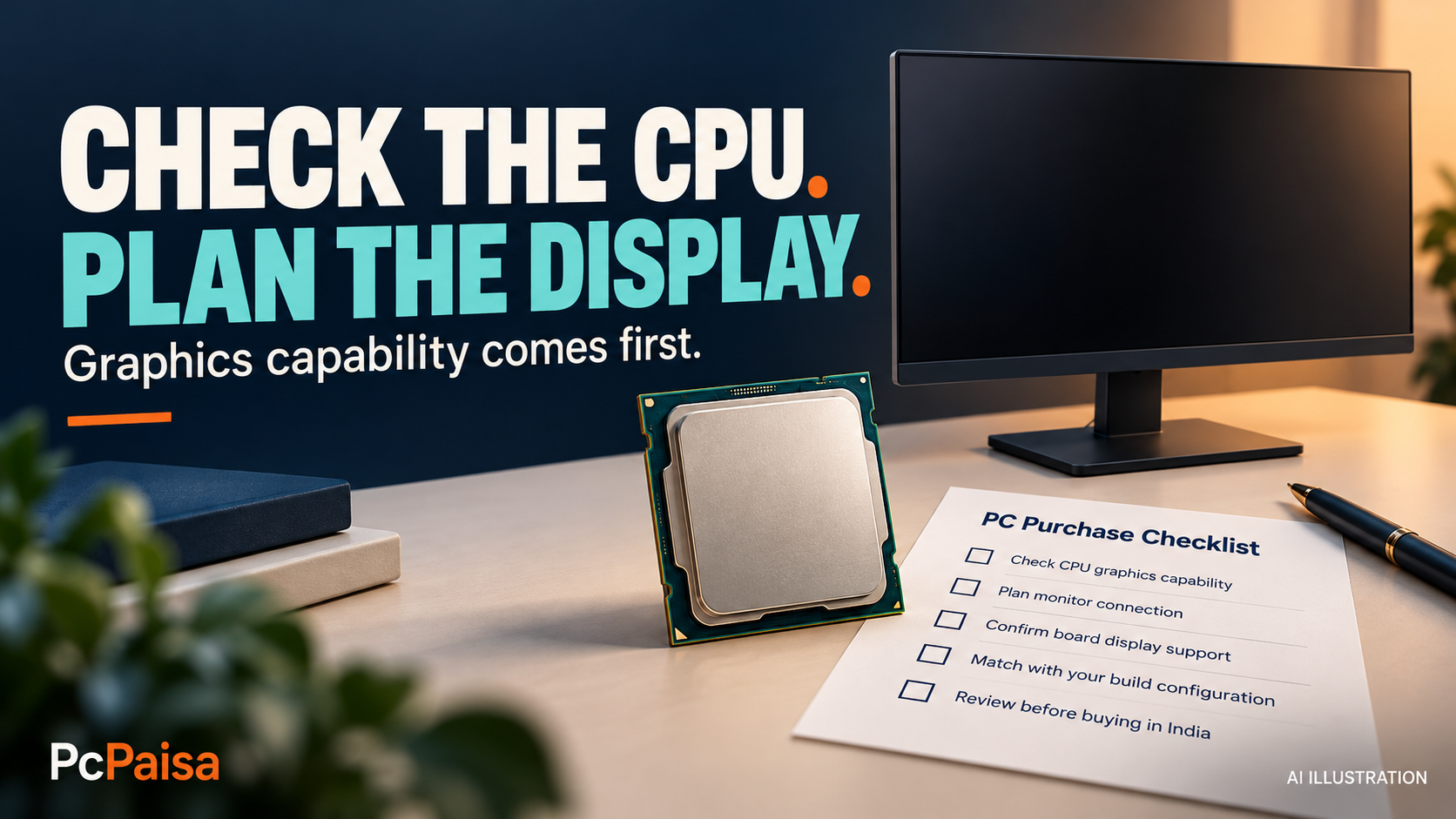
Before buying a desktop, add one question to the parts list: which component will provide the display, and where will the monitor cable connect? This matters when a graphics card is coming later, when you are reusing a card, or when you want another display option during a repair.
A motherboard photo can show HDMI or DisplayPort sockets without resolving that question. Start with the complete CPU model, then check the board and intended connection. For an Indian purchase quote, write the display plan beside the parts and checkout total so the assembled system matches what you expect on day one.
Read the graphics field for the exact CPU
Open the processor manufacturer’s page for the model on your quote. Look for the graphics capability and read its value. Record the full model rather than shortening it to a product family. If a retailer substitutes a processor, repeat this check before accepting the change.
Two AMD examples show a useful distinction:
- Ryzen 5 7500F: AMD’s graphics field says a discrete graphics card is required. Plan a separate card and its monitor connection when selecting this CPU; do not budget around obtaining a display from the board’s HDMI socket alone. AMD Ryzen 5 7500F specifications
- Ryzen 5 7600: AMD lists Radeon graphics. This establishes a CPU graphics capability to check against the board’s display support. It does not establish gaming performance, a suitable resolution for your workload, or a guaranteed troubleshooting result. AMD Ryzen 5 7600 specifications
These are two exact processors, not a naming rule for every Ryzen model. They are also not a recommendation to pair either CPU with the example motherboard below. Complete the board’s CPU-support and required-BIOS checks separately.
Match the capability to the motherboard
For a concrete example, the ASUS PRIME B650M-A WIFI II lists DisplayPort, VGA and HDMI. Its graphics footnote says specifications vary with CPU type and directs buyers to AMD’s CPU specifications. Read the connectors and that condition together. ASUS exact-board specifications
Keep the board’s full name, including “II”, in the purchase record. A similar name or shared chipset cannot answer the display question for a different model. Find your intended port in your own board’s specification and manual, then check the monitor input and cable you intend to use. Ask the board manufacturer about an unresolved condition before committing to the combination.
Name the port that will actually be used
ASUS distinguishes motherboard outputs for CPU graphics from a separate graphics card’s outputs. Its guidance asks users to check CPU graphics support and their board manual’s BIOS configuration. A card’s display cable connects to that card’s output. ASUS display guidance, updated 5 March 2026
Put that connection into the assembly brief: “monitor connected to the selected graphics card’s HDMI output”, for example. Avoid instructions such as “plug into the back of the PC”, which leave the output unspecified. Keep the monitor’s input selection consistent with the planned cable connection. The connector’s location is easier to establish before the machine arrives than during a first-boot surprise.
Decide what an additional display option is worth to you
If you want to buy the graphics card later, resolve the initial display plan before ordering the rest of the system. If you already own a card, include its exact model and outputs in the quote. If you want CPU graphics available during a future card repair, ask how that configuration is supported on your chosen board.
Document the condition. CPU graphics, board support, firmware settings and the display connection have to line up. Their presence does not guarantee successful startup or identify a blank screen’s cause. Follow the manufacturer’s instructions for your hardware; this checklist does not prescribe a BIOS setting or reset procedure.
Carry a short display plan to checkout
Save five fields beside the quote: exact CPU; documented graphics capability; exact motherboard; intended output and cable; unresolved condition. Add the separate graphics card’s model when applicable. Ask the assembler to confirm that plan, including the required BIOS support, before delivery.
Compare the exact quoted models and current checkout terms rather than assigning a value to integrated graphics from these examples alone. The useful decision is whether the documented display arrangement meets your purchase plan.
Organise the parts in the PcPaisa Build Planner, keeping your display note beside the list. Compare parts through PcPaisa Prices and verify the selected retailer’s checkout. Find selected historical PC-part price-drop alerts and community links through PcPaisa Join.
Primary sources checked on 13 October 2026. The product specifications do not show a page publication date. The examples establish documented graphics and connection conditions; no current price, stock, performance result or automatic display-fallback guarantee is claimed.
Put your shortlist to work
Catch a price drop on your next PC part.
Follow our Telegram channel for selected Indian PC-part price-drop alerts from PcPaisa’s tracked price history.
Join Telegram deal alerts