Monitor refresh rate, input limits and Windows display modes
Why is a high-refresh monitor showing 60Hz? Check the mode and the input
Check the selected Windows mode and the monitor's exact input limits before buying a cable. Dell's S2721DGF shows why resolution, Hz and input belong together.
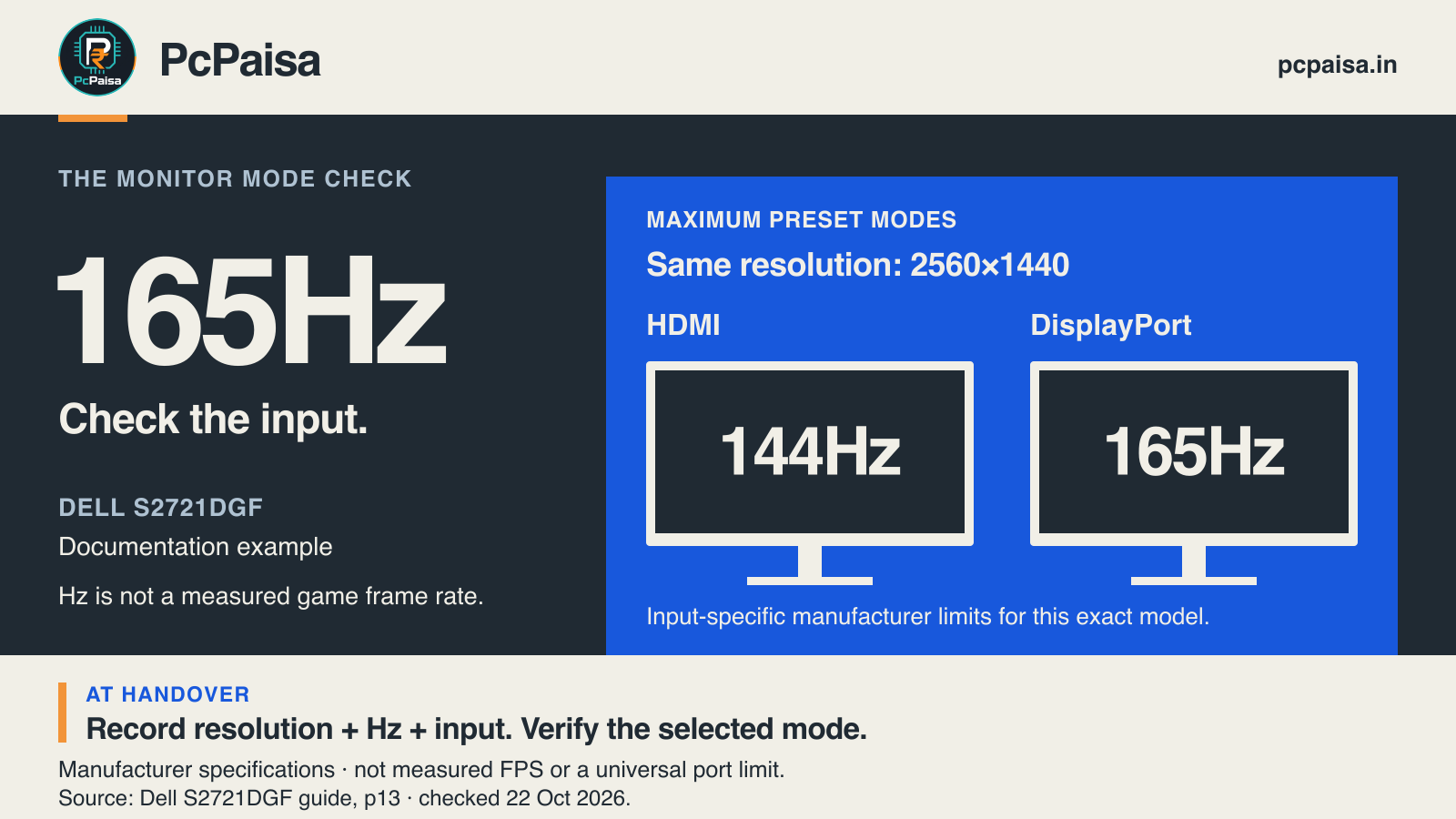
A monitor sold as 144Hz or 165Hz can still be running in a 60Hz mode. Before buying another cable or blaming the graphics card, check two separate things: the mode Windows has selected and the modes supported by the exact connection.
For a new PC handover, record three fields together: resolution + refresh rate + monitor input. “165Hz monitor installed” leaves too much unanswered.
First, read the selected Windows mode
In Windows 11, open Settings → System → Display → Advanced display and inspect the intended monitor. Microsoft says this page shows its current resolution and refresh rate. Use Choose a refresh rate to inspect the available options.
Read the resolution again after changing the rate. Microsoft marks some rates with an asterisk because selecting them changes the resolution. Reaching a larger Hz number by reducing resolution may fail the requirement you actually bought the display for. Microsoft’s refresh-rate instructions
If the documented mode is available, selecting it is a useful first check. If it is absent, that observation alone does not identify a faulty cable, GPU or monitor. Continue with the connection’s documentation.
One monitor, two documented input limits
Dell’s S2721DGF makes the distinction concrete. Its user guide lists these maximum preset resolutions, and Dell’s product specification repeats the input-specific rates:
| Monitor input | Maximum preset resolution | Refresh rate |
|---|---|---|
| HDMI | 2560×1440 | 144Hz |
| DisplayPort | 2560×1440 | 165Hz |
Sources: Dell S2721DGF user guide, page 13, Dell’s exact model specifications.
These are manufacturer mode specifications for this model. They do not describe measured game performance, certify a particular PC connection, or establish the limits of every HDMI or DisplayPort product. The S2721DGF is a documentation example here, with no current price, availability or buying recommendation asserted.
The practical consequence is precise: for 2560×1440 at 165Hz on this monitor, plan around its documented DisplayPort mode and verify the computer’s output and complete connection. An HDMI cable replacement cannot add a 165Hz HDMI mode absent from this model’s specification. Equally, the example itself disproves a blanket claim that HDMI always stops at 60Hz.
Make the handover check reproducible
For an Indian PC-shop quote, an office setup or your own upgrade, keep this short record:
| Record | What to put in it |
|---|---|
| Required mode | Desired resolution and refresh rate together |
| Exact hardware | Monitor model and the computer’s actual output port |
| Connection | Monitor input, cable, and any dock or adapter model |
| Documentation | Supported mode for each relevant device in that path |
| Observed result | Selected resolution and Hz in Windows; date and screenshot |
If a dock or adapter is involved, check its documentation for the same target mode. A useful diagnostic is to simplify the connection where both devices support a documented direct path, then compare the available modes. Treat that as a check to narrow the cause, not a promise that a particular replacement will fix it.
Keep game frame rate separate from this record. Intel describes FPS as the rate at which the graphics hardware draws images. Selecting 165Hz does not establish that a game renders 165fps. Intel’s monitor guide, refresh-rate section
Does everyone need the highest rate?
No. Choose a mode that serves the work and the hardware you have. Microsoft’s guidance notes that lower refresh rates can save battery power. A correctly configured display can also offer variable-refresh behaviour; a configured mode is only one part of the viewing experience.
For troubleshooting, the goal is to establish whether the intended resolution and rate are supported and selected. That gives you a useful acceptance check before spending money on a cable or another component.
Primary documentation checked on 22 October 2026. No hardware test, universal port limit, measured FPS, current offer or guaranteed system compatibility is asserted.
Put your shortlist to work
Catch a price drop on your next PC part.
Follow our Telegram channel for selected Indian PC-part price-drop alerts from PcPaisa’s tracked price history.
Join Telegram deal alerts