SSD capacity units and Windows storage reporting
Why does a 1TB SSD show about 931GB in Windows?
Convert TB to GiB, separate drive capacity from C: and free space, and make a clear SSD handover check before blaming a missing-capacity problem.
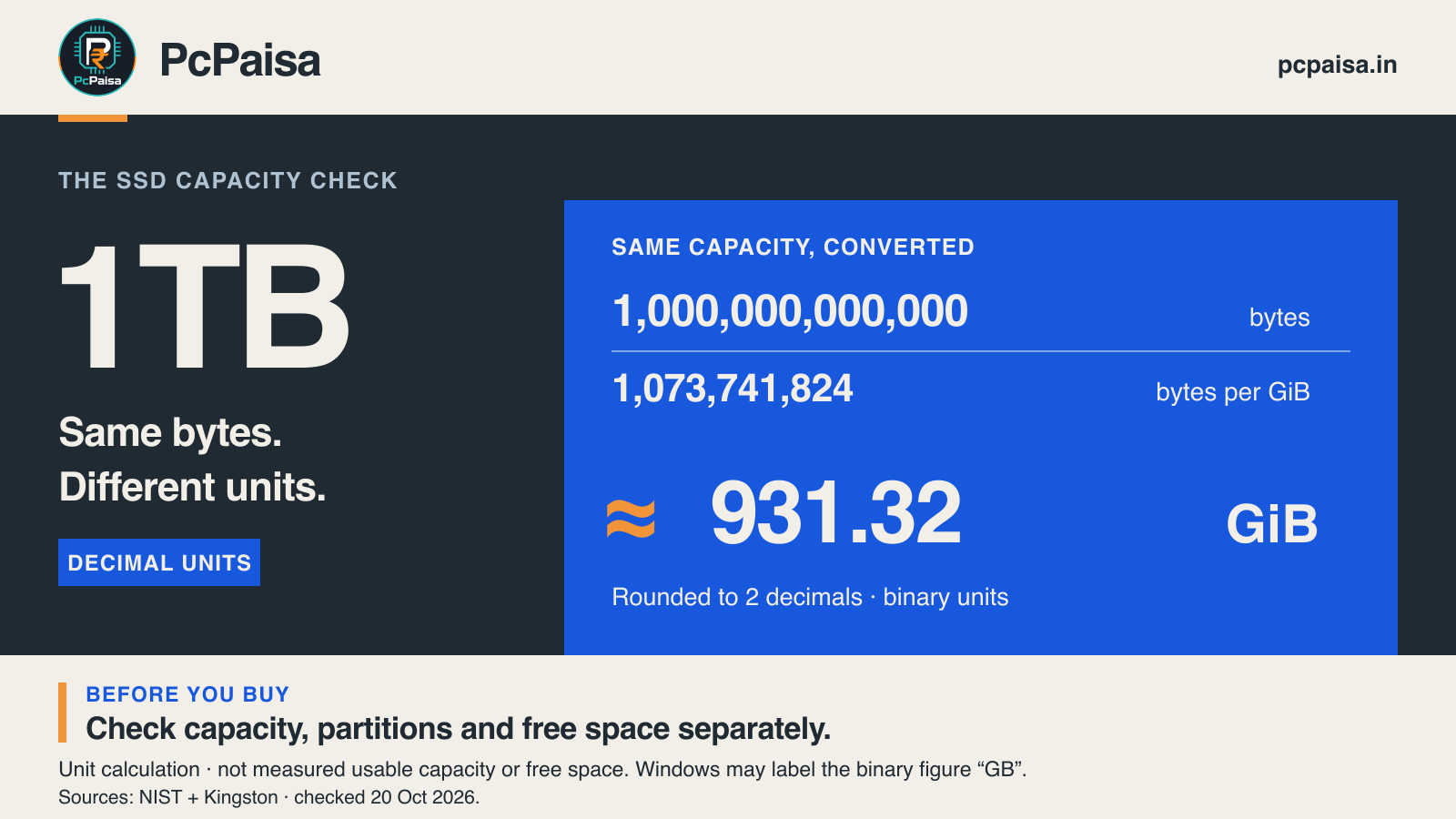
A new SSD is labelled 1TB, but Windows shows roughly 931GB. That number alone does not mean the seller supplied a smaller drive. One trillion bytes can be expressed as 1TB using decimal units or approximately 931.32GiB using binary units.
The buying check is to separate that conversion from a second question: how much space can you actually use after the PC is set up? Drive capacity, the size of C: and its remaining free space describe different things.
The calculation behind 931
In decimal notation, one gigabyte is one billion bytes and one terabyte is one trillion bytes. A gibibyte, abbreviated GiB, is 2³⁰ bytes: 1,073,741,824 bytes. NIST distinguishes the decimal prefixes from these binary prefixes. NIST’s unit guidance, NIST’s GiB definition
For a nominal decimal 1TB:
1,000,000,000,000 bytes ÷ 1,073,741,824 bytes per GiB = 931.3225746…GiB.
Rounded to two decimal places, that is 931.32GiB. No bytes disappear in this calculation; only the unit changes. Kingston’s SSD support FAQ gives the same conversion and describes Windows displaying the resulting figure with a “GB” label. We use GiB here so the arithmetic remains unambiguous. Kingston’s capacity FAQ
The following are calculated examples, before allowing for a particular drive’s reported capacity, partitions or filesystem:
| Decimal capacity | Bytes used in this example | Equivalent GiB, rounded |
|---|---|---|
| 500GB | 500,000,000,000 | 465.66GiB |
| 512GB | 512,000,000,000 | 476.84GiB |
| 1TB | 1,000,000,000,000 | 931.32GiB |
| 2TB | 2,000,000,000,000 | 1,862.65GiB |
A 500GB label and a 512GB label are different starting capacities. Do not treat every drive near the same retail category as identical, or apply the 1TB example to an exact model without checking its specification.
Capacity is not the same as free space
The conversion does not account for everything below the box number. Kingston separately notes that some listed capacity can be unavailable for data storage because of formatting and other functions. The amount depends on the product and configuration; it is not a universal deduction to apply twice.
Windows may also divide the disk into several partitions. Microsoft describes the main Windows partition alongside EFI System and Recovery partitions. C: therefore need not occupy the whole disk. Windows, applications and your files then use space within that volume. A figure labelled “free” is what remains there, not another measurement of the SSD’s advertised capacity. Microsoft’s Disk Management overview
An authentic reader question about a 1TB SSD showing 931GB also asks why adding folder sizes does not reconcile with the drive total. These are separate accounting questions. This older example illustrates the confusion; it does not establish its frequency among Indian buyers.
Keep four numbers in the handover record
For an Indian shop-built PC, laptop upgrade or office deployment, ask the assembler to identify these items together:
| Record | What to compare |
|---|---|
| Exact SSD model and advertised capacity | Match the invoice, installed model identity and manufacturer’s specification. |
| Reported whole-disk capacity | Compare like units; retain the byte count where available. |
| Partition layout and C: capacity | Account for other partitions and any unallocated space. |
| Free space after setup | Record it after the agreed OS, applications and files are installed. |
Microsoft says Disk Management can display drives, their partitions and allocated or used space. Use it to inspect the layout. Do not delete EFI or Recovery partitions to chase the unit-conversion difference; Microsoft advises leaving those system partitions unchanged.
When “it’s just the units” is an incomplete answer
A plausible 931 figure is not a health test, authenticity check or proof that the correct drive was installed. A wrong model, an unexpectedly small partition or a large unexplained discrepancy still needs investigation. Compare the exact model and reported disk capacity first, then inspect the layout. Preserve existing data and ask the manufacturer or assembler when those checks do not reconcile.
Before choosing a larger SSD, compare your intended files and applications against the space available after setup, using consistent units. Save the four-number record with the invoice: it makes a later storage question easier to resolve than a screenshot of one unexplained number.
Primary documentation checked on 20 October 2026. This is a unit calculation and editorial inspection checklist, not PcPaisa hardware testing, a diagnostic result or a current price recommendation.
Put your shortlist to work
Catch a price drop on your next PC part.
Follow our Telegram channel for selected Indian PC-part price-drop alerts from PcPaisa’s tracked price history.
Join Telegram deal alerts